Keep playing.
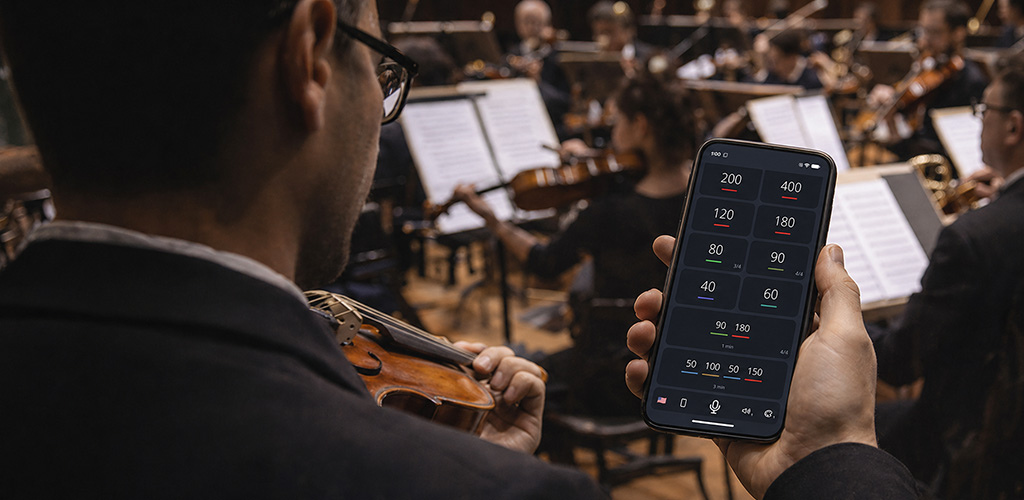
Set the tempo by voice.
Start, stop and change tempo without taking your hands off the instrument.


Three steps. Then keep playing.
Open Say Metronome
Choose your command language.
Tap the microphone
Follow any setup prompts.
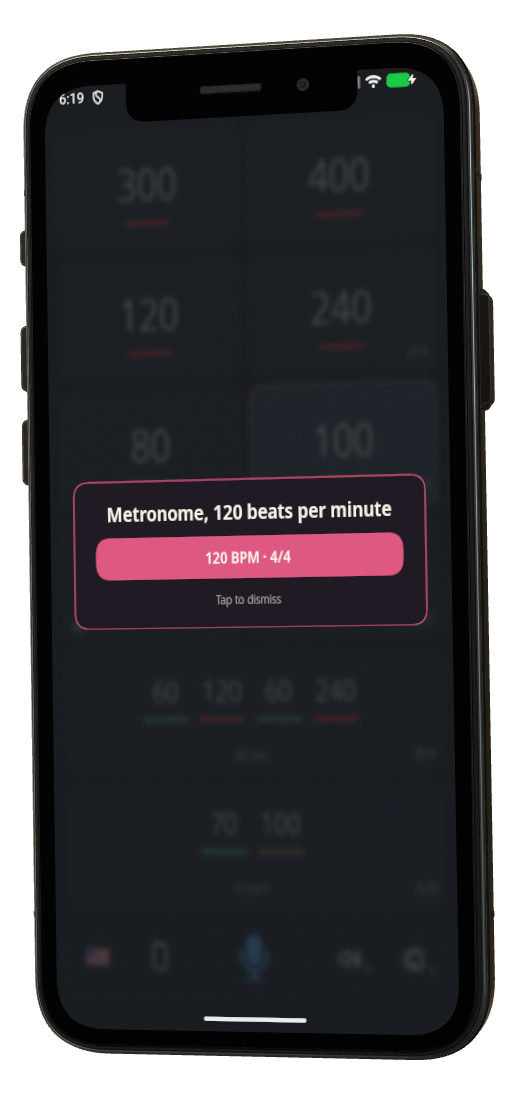
Say “Metronome 80 3/4”
Start the click at your tempo.
First setup
Get ready to use voice control in a few simple steps.
Choose your language.
Tap the flag and select the language you will speak.
Turn on the microphone.
Allow microphone and speech permissions if asked.
Finish any setup prompts.
If the app asks for a model, tap Download and wait. You need an internet connection for this download.
Commands are interpreted on your phone. Speech recognition may use your device provider’s network service when local recognition is unavailable.
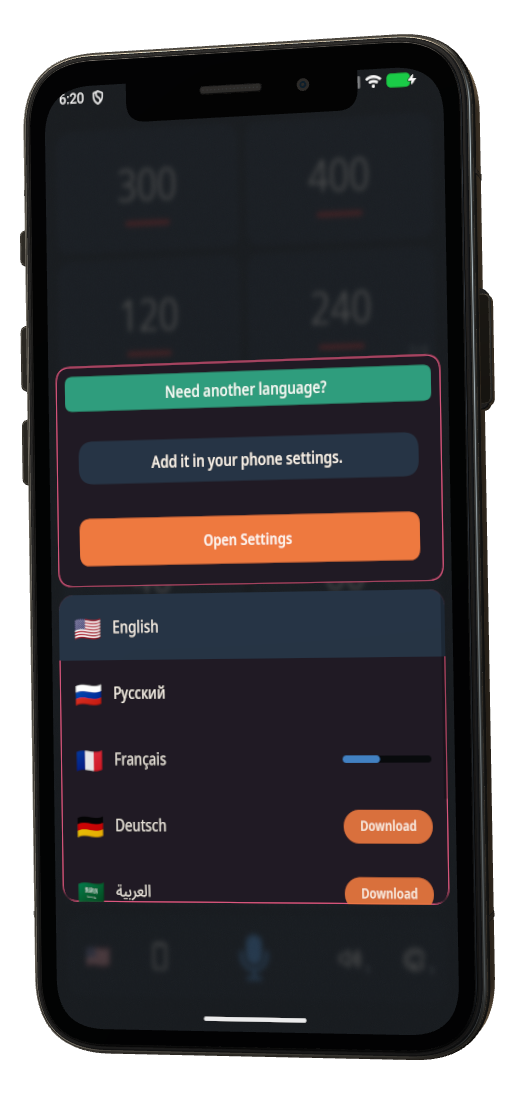
Try your first command.
With the microphone on, say “Metronome 80 3/4”.
Start each command with “Metronome”. These examples use English voice commands. Select English in the app to try them, or use commands in your chosen voice language.
| “Metronome 80 3/4” | Set tempo and time signature. |
| “Metronome faster by 20” | Increase the tempo. +20 BPM |
| “Metronome slower by 10” | Decrease the tempo. −10 BPM |
| “Metronome stop” | Stop the click. |
| “Metronome start” | Resume a tempo. |
| “Metronome 120 then 60 then 240 in 2 minutes” | Tempo changes 120 → 60 (2 min) → 240 (2 min) |
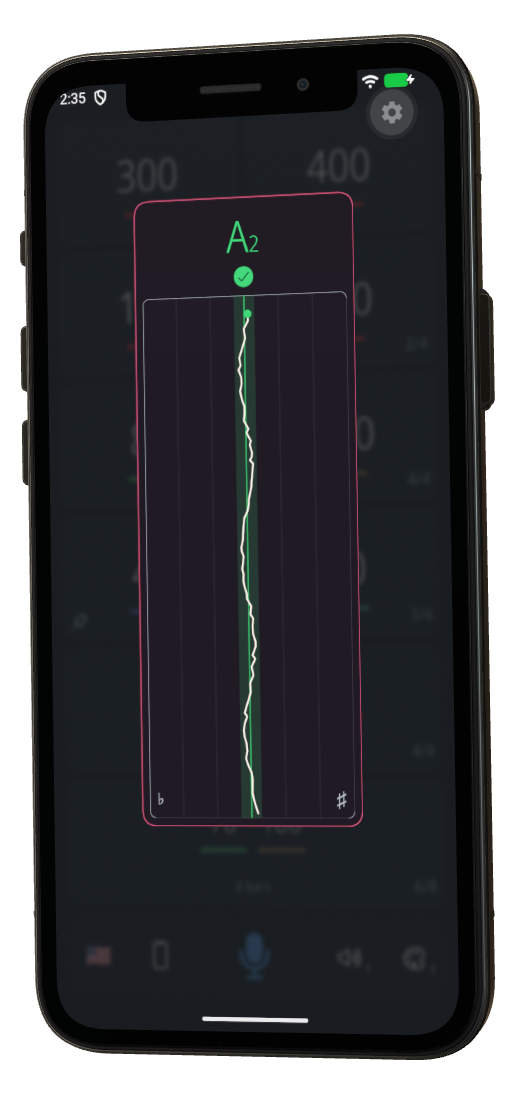
Tune between takes
Leave the microphone on.
Stop the metronome click.
Play a steady note.
The tuner appears automatically.
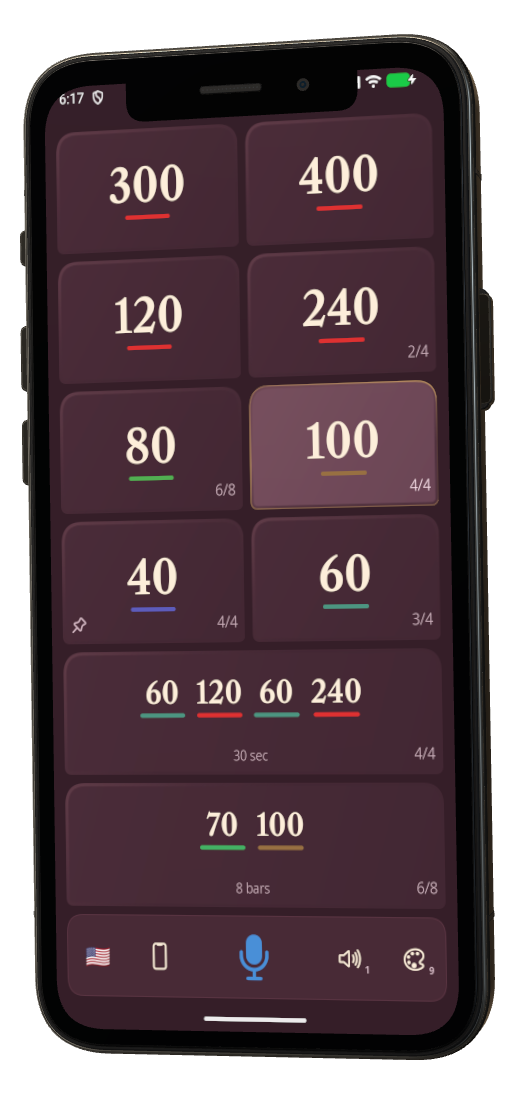
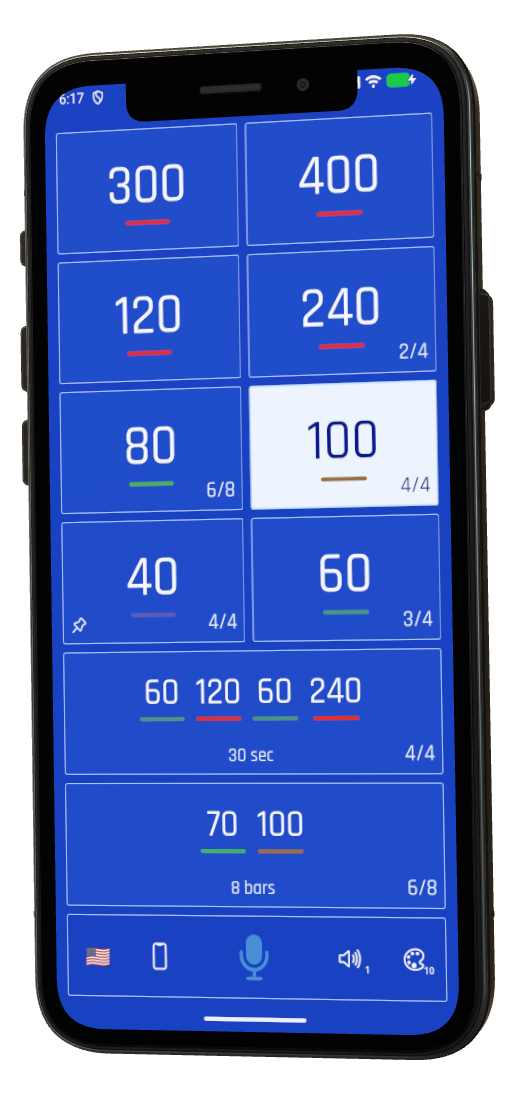
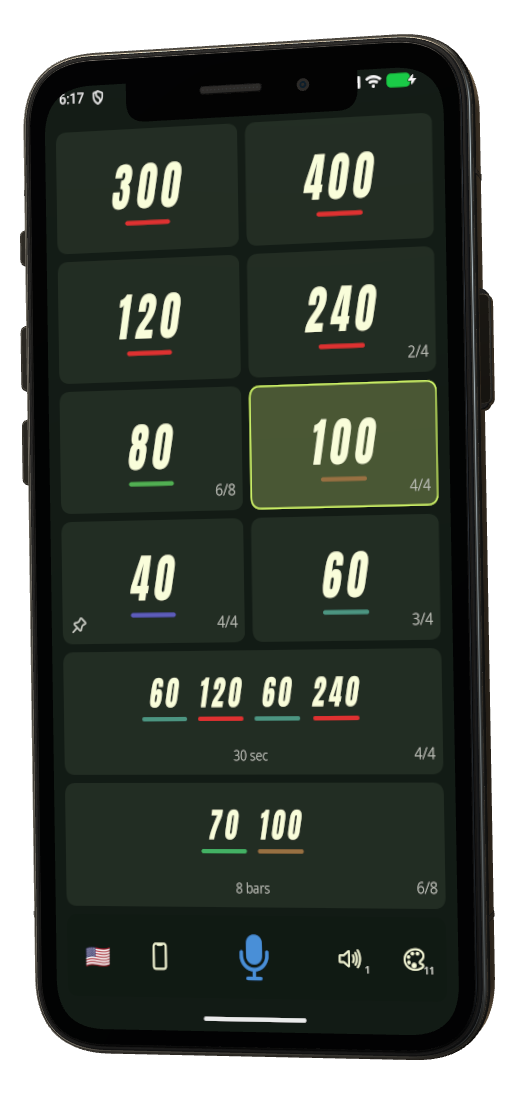
A look for every practice.
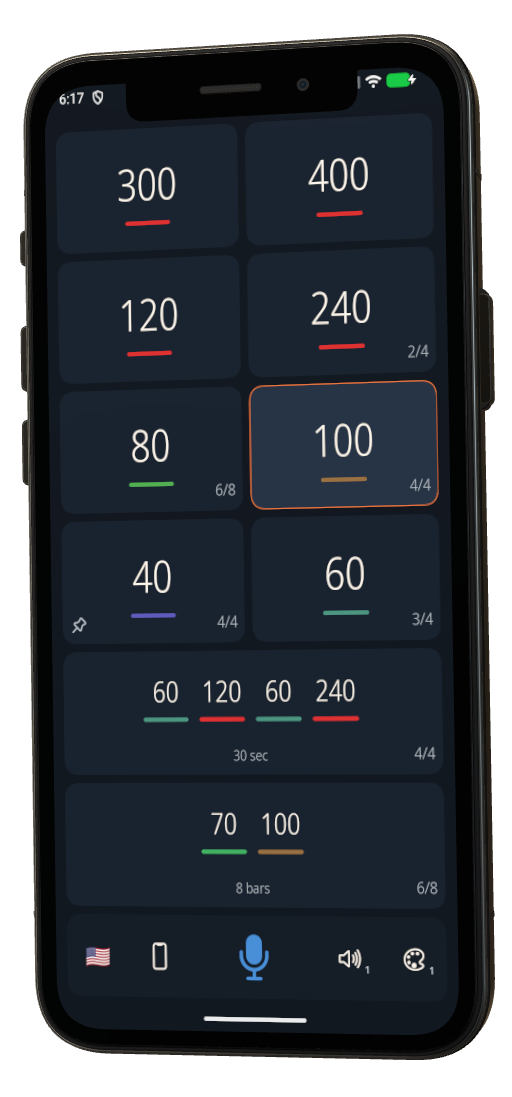
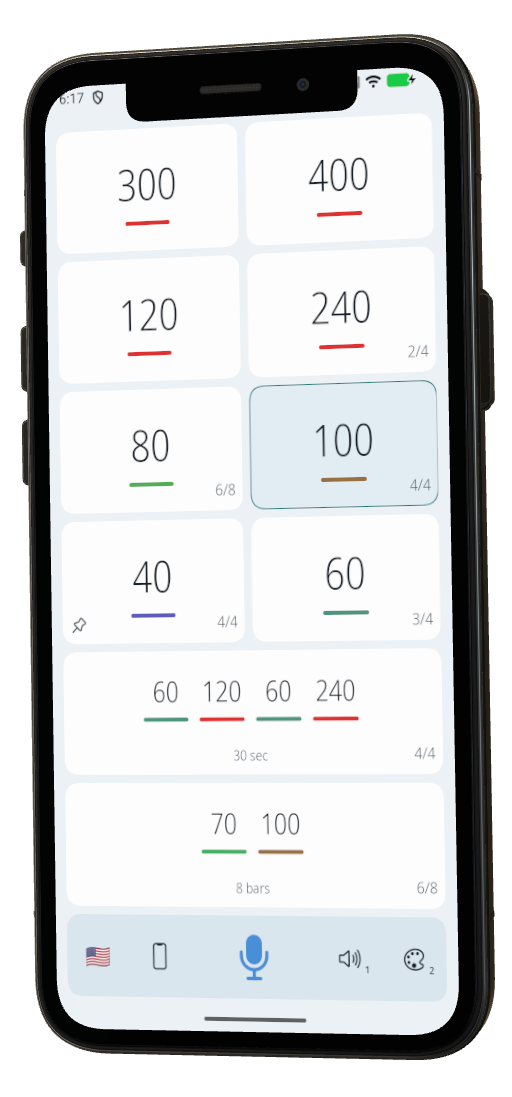
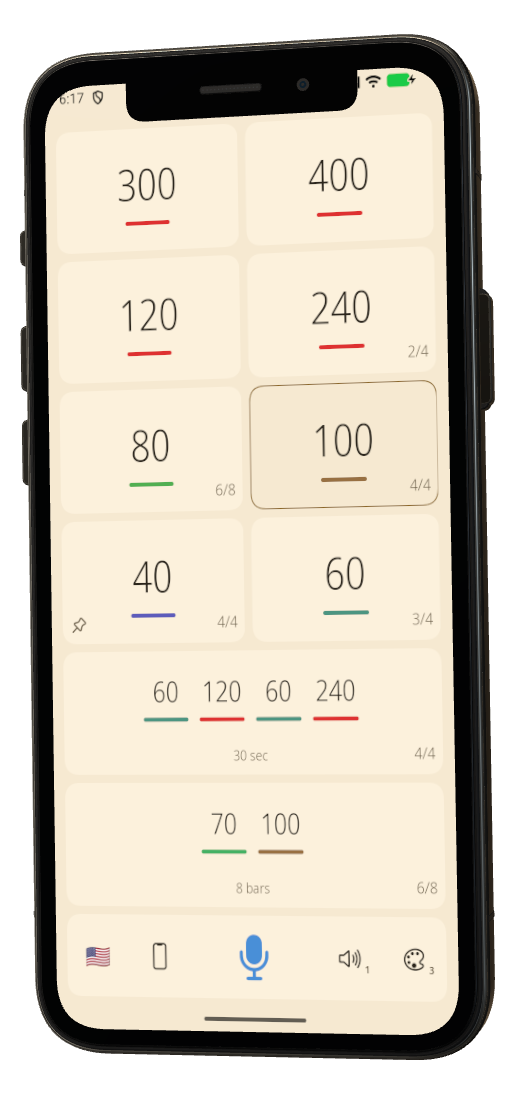
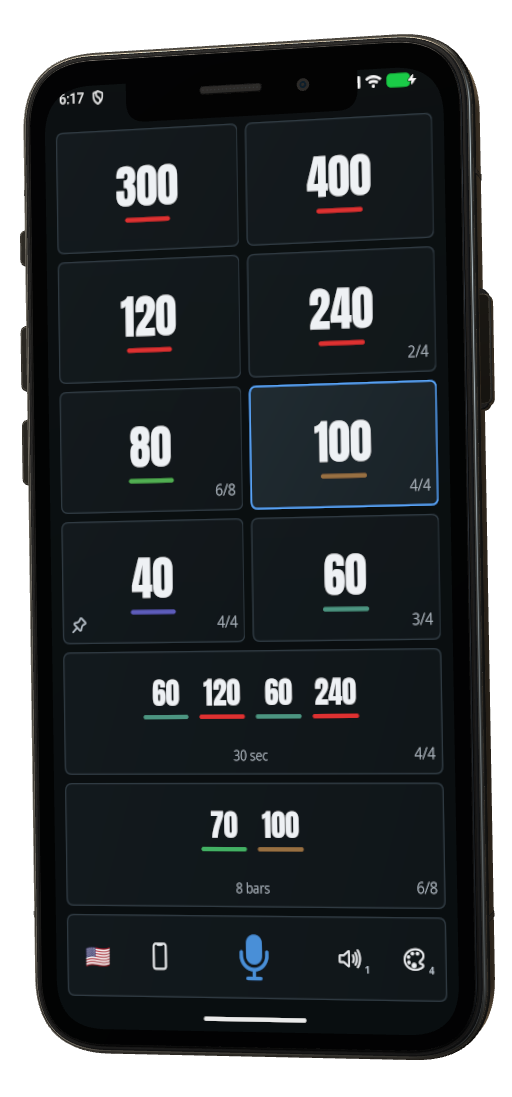
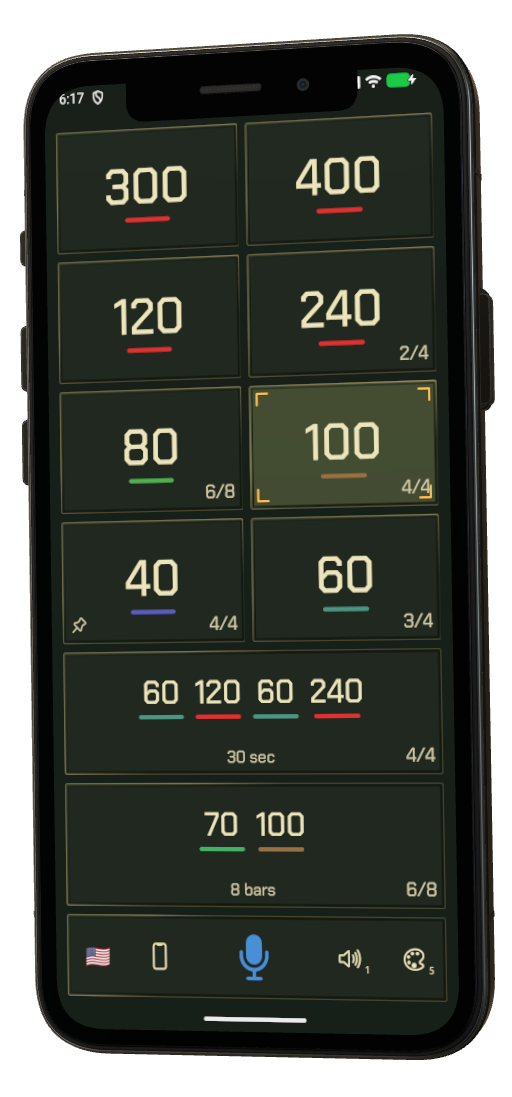
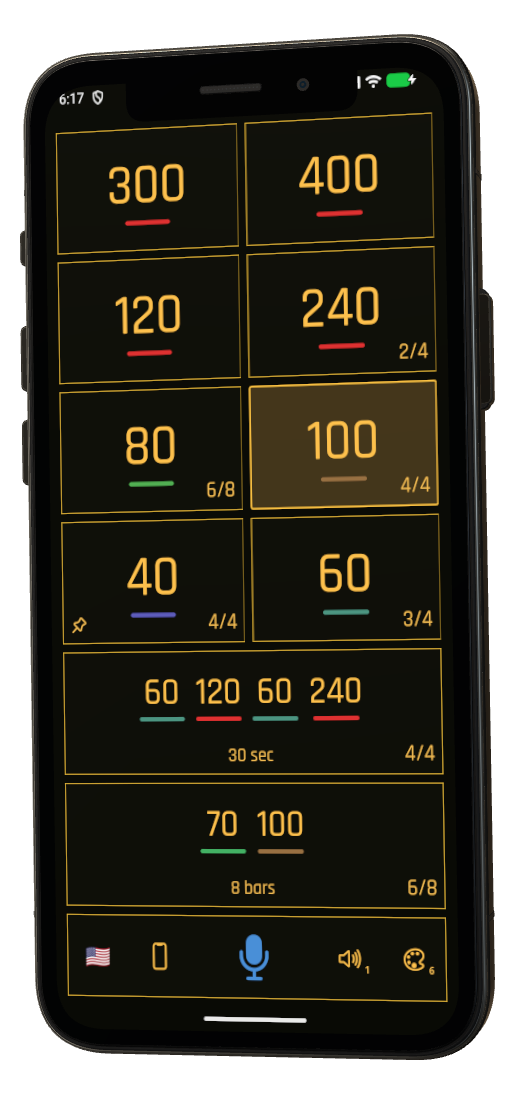
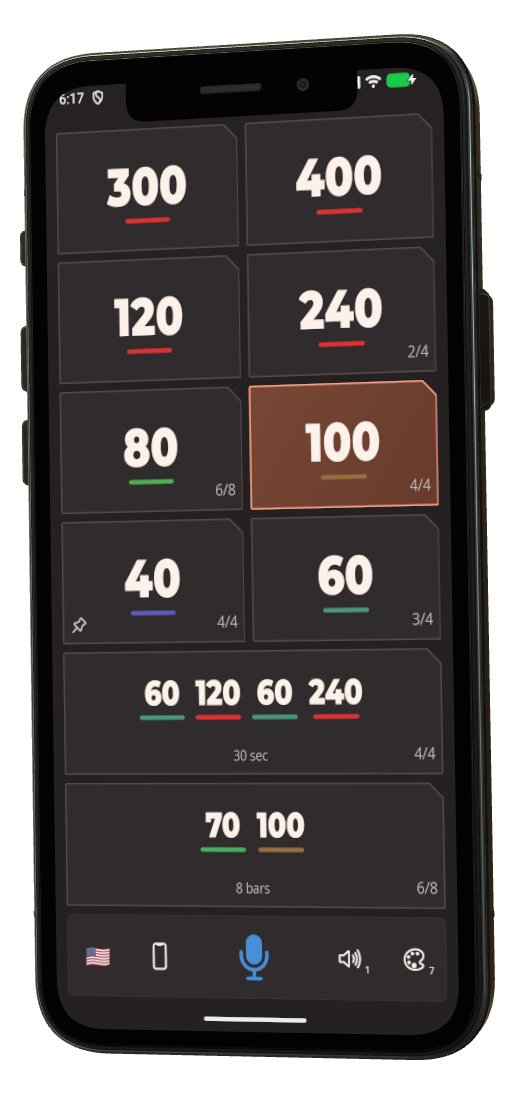
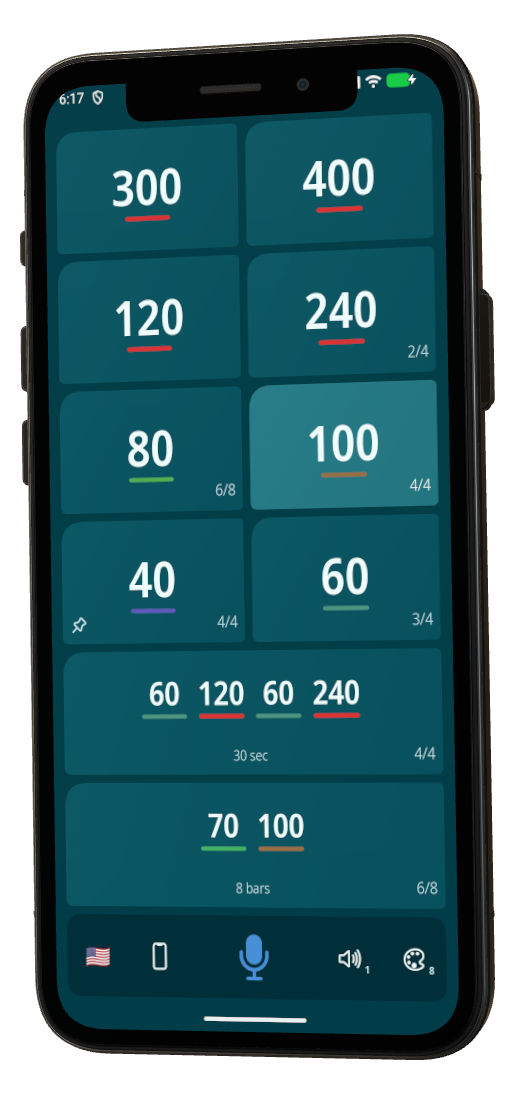
Choose from 11 different themes with Say Metronome Pro.
Light or dark. Quiet or bold. The same controls in every theme.